Manage Children
The Manage Children screen lets you view and manage every child in your family from one convenient location.
From here you can add new children, edit existing child profiles, view each child's screen time balance, and access additional child-specific features.
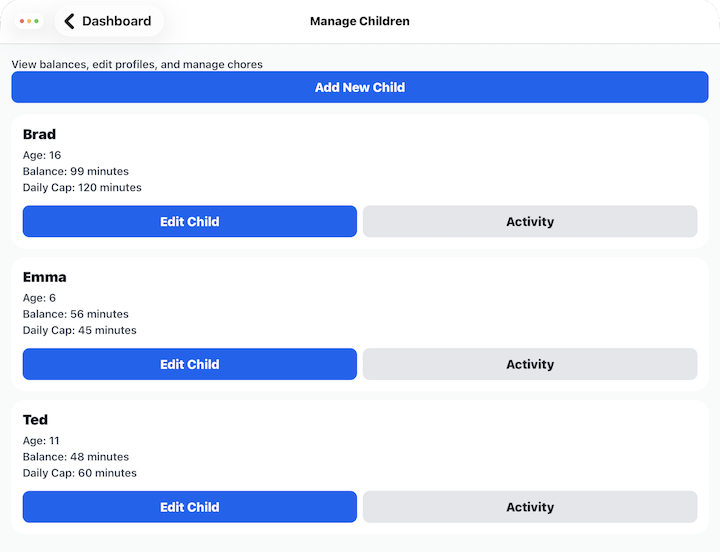
Child List
Each child in your family is displayed with a summary that includes:
- Child's name.
- Current age.
- Available screen time balance.
- Daily screen time cap.
Add New Child
Select Add New Child to create a profile for another child.
See Add Child for detailed instructions.
Edit Child
Select Edit Child to manage an individual child's profile.
From the Edit Child screen you can:
- Update the child's name.
- Change the child's birth date.
- Adjust the daily screen time cap.
- Change the child's avatar.
- Create or change the child's PIN.
- Manage the child's assigned chores.
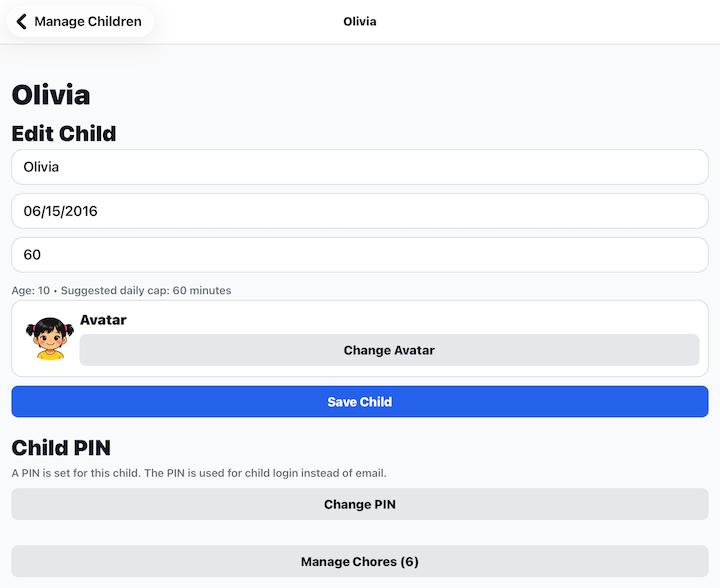
Child Information
Update the child's basic information at any time.
The app automatically calculates the child's age from the birth date and displays a suggested daily screen time cap based on that age.
Tap Save Child after making changes.
Child PIN
Each child signs in using a personal PIN instead of an email address.
Select Change PIN to create a new PIN or replace the existing one.
For security, only parents can change a child's PIN.
Manage Chores
Select Manage Chores to assign chores, remove chores, or review the chores currently assigned to this child.
See Manage Child Chores for more information.
Activity
Select Activity to review the child's recent Barnacle Bucks activity, including earned and redeemed screen time.
Tips
- Keep each child's birth date up to date so age-based recommendations remain accurate.
- Set a unique PIN for every child.
- Review each child's available screen time balance from this screen.
- Use Manage Chores to customize chores based on each child's age and abilities.