Parent Dashboard
The Parent Dashboard is the main control center for managing your family's chores and screen time.
From this screen you can review pending chores, manage your children, invite additional adults, update your account settings, and switch the device into Child Mode.
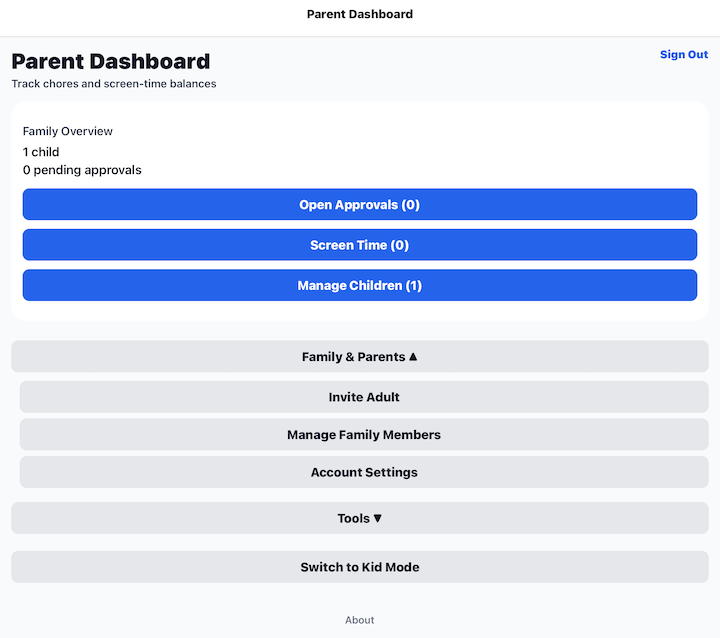
What you'll find on this screen
The Parent Dashboard is organized into several sections that provide quick access to the features you'll use most often.
Family Overview
The Family Overview card provides a quick summary of your family.
It shows:
- The number of children in your family.
- The number of chores waiting for approval.
From this card you can quickly open the features you use most often.
Open Approvals
Select Open Approvals to review chores your children have completed.
From here you can:
- Review completed chores.
- View required photo proof.
- Approve completed chores.
- Reject chores that need to be redone.
When you approve a chore, the child automatically receives the screen time earned for completing it.
Screen Time
Select Screen Time to manage your children's screen time.
From here you can:
- View available screen time balances.
- Restore unused screen time.
- Review active and completed screen time sessions.
Manage Children
Select Manage Children to manage your children's profiles.
From here you can:
- Add new children.
- Edit child information.
- Assign chores.
- View and manage each child's chores.
Family & Parents
Expand Family & Parents to access additional family management features.
Invite Adult
Invite another trusted adult to help manage your family.
Invited adults can help review chores and manage children based on the permissions you grant them.
Manage Family Members
View everyone who belongs to your family and manage their access.
Account Settings
Update your account information and security settings.
From here you can:
- Update your profile information.
- Change your password.
- Configure your Parent PIN.
- Manage your account preferences.
Tools
Expand Tools to access additional utility features as they become available.
Switch to Child Mode
Select Switch to Child Mode when a child wants to use this device.
The Parent Dashboard will close and the Child PIN Login screen will open so a child can securely access their own account.
Log Out
Select Log Out in the upper-right corner to securely log out of your parent account.
Tips
- Check the dashboard regularly for chores waiting for approval.
- Review photo proof before approving completed chores.
- Switch to Child Mode instead of signing out if children also use this device.