Logging In as a Parent
Parents sign in using the email address and password they created when setting up their Barnacle Bucks account.
After signing in, you'll use your Parent PIN (or biometrics, if enabled on your device) whenever you access the Parent Area.
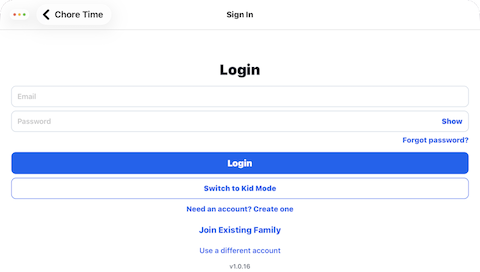
First-Time Sign In
When you sign in for the first time:
- Enter your email address and password.
- If you haven't already, confirm your email address using the verification email.
- Choose Parent on the Choose User screen.
- Create your Parent PIN.
- You'll be taken to the Parent Dashboard.
Your Parent PIN helps protect family settings, approvals, chores, and screen time from being accessed by children using the same device.
Returning to the Parent Area
After you've signed in previously:
- Open Barnacle Bucks.
- On the Choose User screen, tap Parent.
- Enter your Parent PIN, or authenticate with biometrics if your device supports it.
You'll then be taken directly to the Parent Dashboard.
Forgot Your Password?
On the login screen, tap Forgot Password?
Barnacle Bucks will send a password reset email to the address associated with your account.
For security reasons, open the password reset email on the same device where you requested the reset whenever possible.
Forgot Your Parent PIN?
If you've forgotten your Parent PIN, sign in with your email address and password. After successfully authenticating, you can create a new Parent PIN from Account Settings.
Adding Children
Children are not added during account creation.
After you're signed in, open:
Parent Dashboard → Manage Children
From there you can:
- Add children.
- Edit child information.
- Assign chores.
- Set up child devices.
Tips
- Keep your Parent PIN private.
- Use a strong password for your account.
- Enable biometrics for faster access if your device supports it.
- Sign out when using a shared device if you don't want your email account to remain signed in.