Open Chore Approvals
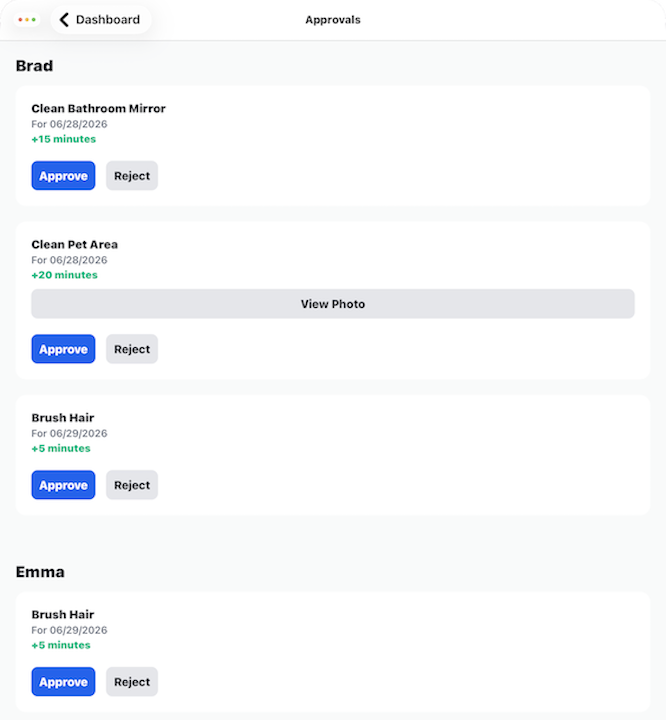
The Open Approvals screen is where you review chores that your children have completed.
When a child marks a chore as complete, Barnacle Bucks immediately sends a notification to all parents in the family. Selecting the notification opens the Open Approvals screen with that completed chore already selected so you can review it right away.
If you don't open the notification, completed chores remain waiting for approval and can always be accessed by selecting Open Approvals from the Parent Dashboard.
What you'll find on this screen
Completed chores are grouped by child to make them easy to review.
Each completed chore displays:
- The child's name.
- The chore name.
- The date it was completed.
- The amount of screen time that will be awarded.
- A View Photo button when photo proof is required.
- Approve and Reject buttons.
Reviewing Photo Proof
Some chores require a child to submit a photo before they can be approved.
When a photo is available, select View Photo to review the completed work before making your decision.
Approving a Chore
Select Approve when the chore has been completed satisfactorily.
Approving a chore will:
- Award the child the screen time earned for the chore.
- Remove the chore from the approval list.
- Notify the child that the chore has been approved.
Rejecting a Chore
Select Reject if the chore needs additional work or was not completed correctly.
Rejecting a chore will:
- Return the chore to the child.
- Notify the child that the chore was rejected.
- Allow the child to complete and submit the chore again.
No screen time is awarded until the chore is approved.
Tips
- Review photo proof before approving chores that require it.
- Approve chores promptly so children receive their earned screen time without unnecessary delays.
- If multiple chores are waiting, review each one individually before approving or rejecting it.